Windows is what I typically just use for gaming and some general stuff, only one of my computers actually runs windows, definitely recommend setting up WSL for it
WSL
Since I run NixOS I use https://github.com/nix-community/NixOS-WSL
Following which I setup an SSH key and clone this repo (my nix config)
git clone git@github.com:rft/nix-config.git
git will likely be missing from a fresh NixOS install, you can add git temporarily with nix quite easily with nix shell nixpkgs#git
after it has been cloned I run sudo nixos-rebuild switch --flake .#mistletoe
"mistletoe" being what I defined my WSL host as.
Windows Software
Software list
- Powershell
- Everything
- windirstat
- Executor
- Blackblaze
- Prism Launcher
- wootility
- Air screen mirroring
- Bambu Studio
- Naps2
- Raindrops
- Autohotkey
- mpv.net
- lossless cut
- netbird
Powershell
If you want to keep your sanity on windows use powershell, makes you feel more at home if you are used to bash, no longer will you type "ls" and be rejected by windows for not typing "dir" instead
In some ways it's actually better than bash, since it lets you move objects down the pipeline, but given the option I am usually in WSL instead, still though it's not too bad, and becomes really nice with the extensions listed later below.
Powershell is usually installed by default, but with whatever version on windows it can be quite old, so I would suggest you get the latest elsewhere. It should be available via winget or on the appstore
winget install -e --id Microsoft.PowerShell
Everything
Executor
- Might be marked as a virus (allow through defender)
- make sure to mark launch on startup
- Change keybind to win + alt + A
Quick install via winget
winget install --id=Obsidian.Obsidian  -e
winget install --id=Valve.Steam  -e
winget install --id=Discord.Discord  -e
winget install --id=Spotify.Spotify  -e
winget install --id=Flameshot.Flameshot  -e
winget install --id=WerWolv.ImHex  -e
winget install --id=calibre.calibre  -e
winget install --id=SolveSpace.SolveSpace  -e
winget install --id=Cockos.REAPER  -e
winget install --id=Audacity.Audacity  -e
winget install --id=Cyanfish.NAPS2  -e
winget install --id=AutoHotkey.AutoHotkey  -e
winget install --id=RustemMussabekov.Raindrop  -e
winget install --id=BlenderFoundation.Blender  -e
winget install --id=OpenStenoProject.Plover  -e
winget install --id=Anki.Anki  -e
winget install --id=WinDirStat.WinDirStat  -e
winget install --id=voidtools.Everything  -e
winget install --id=PrismLauncher.PrismLauncher  -e
winget install --id=WiresharkFoundation.Wireshark  -e
winget install --id=OBSProject.OBSStudio  -e
winget install --id=ajeetdsouza.zoxide  -e
winget install --id=DebaucheeOpenSourceGroup.Barrier  -e
winget install --id=Bitwarden.Bitwarden  -e
winget install --id=Microsoft.VisualStudioCode  -e
winget install --id=MartinBresson.Executor  -e
winget install --id=Bambulab.Bambustudio  -e
winget install --id=Ablaze.Floorp  -e
winget install --id=Vivaldi.Vivaldi  -e
winget install --id=VideoLAN.VLC  -e
winget install --id=mpv.net  -e
winget install --id=BurntSushi.ripgrep.GNU  -e
winget install --id=sharkdp.fd  -e
winget install --id=ch.LosslessCut  -e
winget install --id=RevoUninstaller.RevoUninstaller  -e
winget install --id=Rufus.Rufus  -e
winget install -e --id Microsoft.Sysinternals.ProcessExplorer
App Store
There are a few things I get from the Appstore, mainly for convenience
- Oh my posh
- Powertoys
- Icloud
- Wolfram Alpha
- Devtoys
Settings
Disable suggest snap when snapping window to side
- System > Multitasking
- Click dropdown arrow and uncheck "When I snap a window, suggest what I can snap next to it"
Disable "ads"
- Personalization > Lockscreen
- Uncheck "Get fun facts, tips, tricks and more on your lock screen"
- Personalize your lock screen > picture
Enable Hibernation
- Open the old control panel (Might need to search)
- Power Options > Choose what the power buttons do > Check hibernation
System > Multitasking
- Click dropdown arrow and uncheck "When I snap a window, suggest what I can snap next to it"
Terminal
- Psreadline
- Zoxide
- oh my posh
- alias pwsh=“/mnt/c/Program\ Files/Powershell/7/pwsh.exe”
- alias vi=nvim
- alias vim=nvim
- alias cd=z
⚠️ **Warning**: Make sure powershell version is > 6 `$PSVersionTable.PSVersion` to check
Hide other stuff from terminal
Profiles > Azure/Command promt, > Hide porfile form dropdown
Oh My Posh
A bit of software that makes your terminal look nice
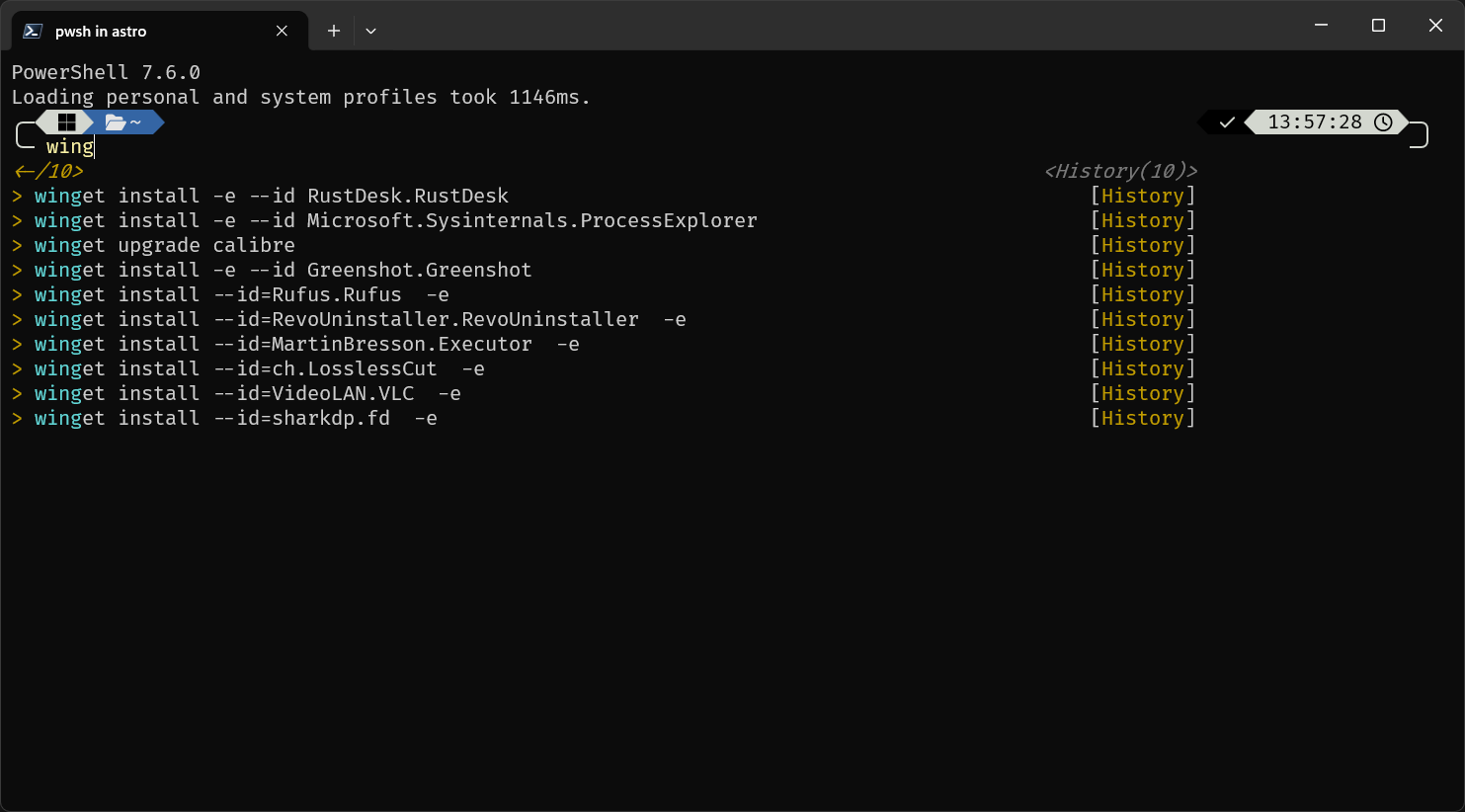
winget install JanDeDobbeleer.OhMyPosh --source winget --scope user --force
or get it on the windows app store
https://ohmyposh.dev/docs/installation/windows
Add required stuff to path
If you downloaded via the app store you do not need to follow these steps
- search environment variables on windows search and click on
edit environment variables for account - from there click on
Environment Variables... - from there click on
PATHand addC:\Users\<youruser>\AppData\Local\Programs\oh-my-posh\bin\ - for themes create a new variable called
POSH_THEMES_PATHand addC:\Users\<youruser>\AppData\Local\Programs\oh-my-posh\themes\
Create powershell profile
if using a newer version of powershell it will ask if you want a profile made.
if you do run notepad $PROFILE
if it fails (likely means your powershell version is old) you can run
if (!(Test-Path -Path $PROFILE)) { New-Item -ItemType File -Path $PROFILE -Force }
but I would recommend you update instead!
Add required software
https://github.com/PowerShell/PSReadLine
From an elevated terminal run
Install-Module -Name PowerShellGet -Force; exit
Install-Module PSReadLine -Repository PSGallery -Scope CurrentUser -AllowPrerelease -Force
https://github.com/devblackops/Terminal-Icons
Install-Module -Name Terminal-Icons -Repository PSGallery
View profile
notepad $PROFILE
oh-my-posh init pwsh --config "$env:POSH_THEMES_PATH\powerlevel10k_rainbow.omp.json" | Invoke-Expression

Import-Module -Name Terminal-Icons
Import-Module -Name PSReadLine

Set-PSReadLineOption -PredictionSource History
Set-PSReadLineOption -PredictionViewStyle listView
Set-PSReadLineOption -EditMode Windows

Invoke-Expression (& {
	$hook = if ($PSVersionTable.PSVersion.Major -lt 6) { 'prompt' } else { "pwd" }
	(zoxide init --hook $hook powershell | Out-String)
})
Starting directory
%USERPROFILE%